

Available only to FXXOne customers.
Predefined reports
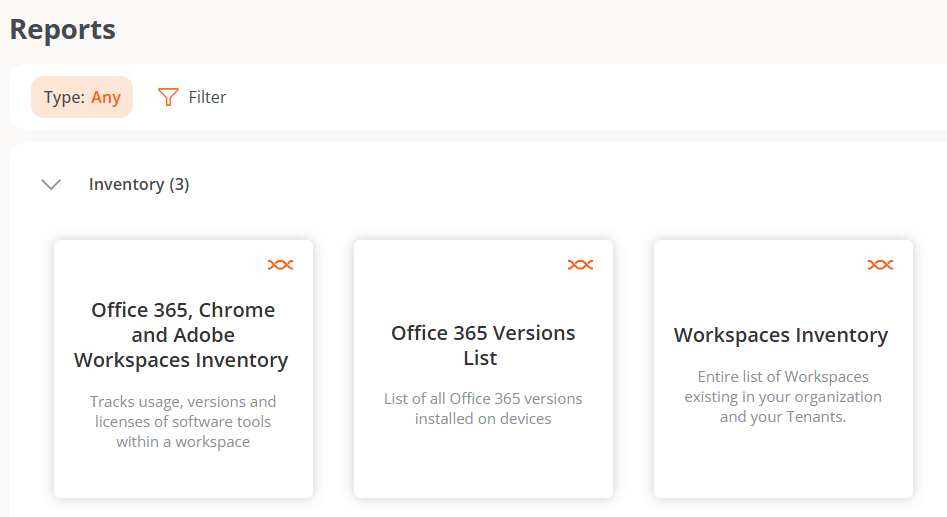
There are three types of predefined reports:- Office 365, Chrome and Adobe Workspaces Inventory
- Office 365 Versions List
- Workspaces Inventory
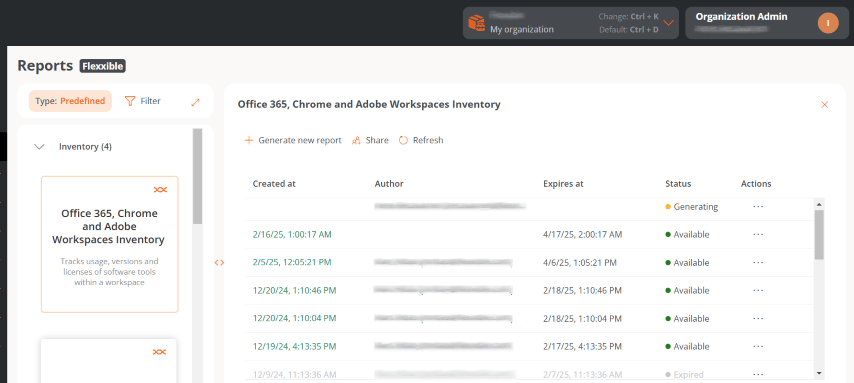
- Created on. Date and time the report was generated. By clicking this option, you can access a table with the report content.
- Author. User who generated the report.
- Expires on. Report expiration date and time.
- Status. Report status (Available, Generating, or Expired).
- Actions. Access to a menu of actions related to reports.
- View details. Displays a table with the specific contents of the report.
- Download Excel. Downloads the report in Excel format.
- Download CSV. Downloads the report in CSV format.
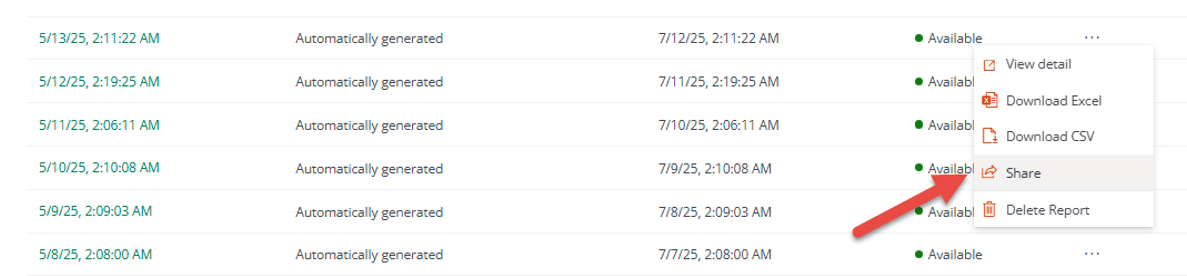
- Share. Lets you send the report by email.
- Delete report. Deletes the report.
Office 365, Chrome and Adobe Workspaces Inventory
Shows usage tracking, versions, and licenses of Office 365, Chrome, and Adobe on devices. The table provides the following information:- Host number. Device name.
- Serial number. Device serial number.
- CPU cores. Number of central processing unit cores.
- RAM. Total amount of RAM (in megabytes).
- Disk used (%). Percentage of system disk occupancy.
- Total disk capacity. Total disk capacity (in gigabytes).
- Operating system. Type of operating system.
- Microsoft 365. Installed Office version.
- Google Chrome. Installed Google Chrome version.
- Adobe Acrobat. Installed Adobe Acrobat version.
- Last user. User of the last session detected on the device.
- Created on. Date of report execution (creation).
- Date of last report. Date of execution (creation) of the last report.
Office 365 Versions List
Generates a list of the Office 365 versions installed on the organization’s devices and, for each one, shows the number of devices that contain it.Workspaces Inventory
Shows a list of the existing devices in the organization and in its tenants. The table provides the following information:- Name. Device name.
- Domain. Active Directory or EntraID domain to which the device belongs.
- Last user. User of the last session detected on the device.
- Device type. Physical or Virtual desktop.
- Operating system. Operating system name.
- Motherboard manufacturer. Name of the motherboard manufacturer.
- Motherboard model. Name of the motherboard model.
- BIOS manufacturer. Manufacturer of the basic input/output system (BIOS).
- Processor. Processor name.
- CPU cores. Number of central processing unit cores.
- Regulatory compliance. Compliance policy applied to the device.
- Hypervisor. Type of hypervisor detected on the device.
- Broker. Type of broker detected on the device.
- Antivirus. Name of the antivirus detected on the device.
- Antivirus status. Antivirus status on the device.
- BIOS mode. BIOS mode.
- Organization. Organization to which the device belongs.
- Client version. Installed version of FlexxAgent.
- Country. Country where the device is located.
- Created on. Day the device was created in Portal.
- Active CrowdStrike detections. Active detections from CrowdStrike.
- CrowdStrike status. Installed and functioning, Not installed, or Unknown.
- CrowdStrike version. Version number of CrowdStrike installed on the device.
- Subnet. Subnet in which the device resides.
- Default gateway. Default gateway.
- Desktop type. For VDIs, defines the desktop type.
- EDR. Type of Endpoint Detection and Response (EDR) detected on the device.
- Farm/Cluster. For VDIs, shows the farm to which it belongs.
- Delivery group. For VDIs, shows the delivery group to which it belongs.
- Fast startup. Shows whether the device has Fast Startup enabled.
- FLXMID. Device identifier.
- IP address. IP address number detected on the device.
- Intel AMT compatible. Indicates whether the device is compatible with Intel AMT.
- Is portable. Indicates whether the device is portable.
- Total RAM (GB). Total amount of RAM (in gigabytes).
- Number of days since the last Windows update. Indicates the number of days since the last Windows update.
- Number of pending updates. Indicates the number of pending updates.
- OS build. Operating system build number.
- Operating system manufacturer. Name of the operating system manufacturer.
- Operating system version. Version number of the operating system.
- OU. Organizational unit of the domain where the computer account resides.
- Platform type. Windows, Linux, Mac, etc.
- Windows type. Workstation or Server.
- Encryption. Indicates whether BitLocker disk encryption is active.
- Pending restart. Indicates whether the device has a pending restart for updates.
- IoT Hub configuration sync. Synced or Not synced.
- Custom field 01. Displays the content of the first custom field.
- Custom field 02. Displays the content of the second custom field.
- Last restart. Date of the device’s last restart.
- Last Windows update. Date the last Windows update was applied.
- Report group. Report group to which the device belongs.
Generate a report
To generate a report, follow these steps:- Go to Reports and select a report type in the inventory.
- In the top menu of the table, click Generate new report. In organizations with tenants, a modal window opens asking you to select which tenant you want the report for. Once chosen, click Generate.
Share a report
This feature lets you share historical reports or those generated by a user at the moment. Reports can be shared with one or more recipients.Share the last report
Lets you send the report to the recipients you specify.- Go to Reports and select a report type in the inventory.
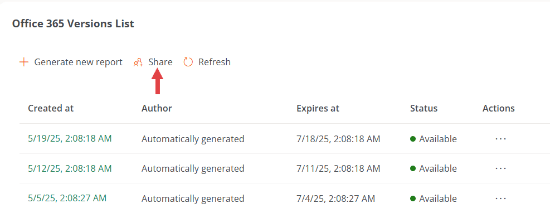
- In the top menu of the table, click the Share button.
- Enter the email addresses of the recipients, and press the Enter key on the keyboard to add them.
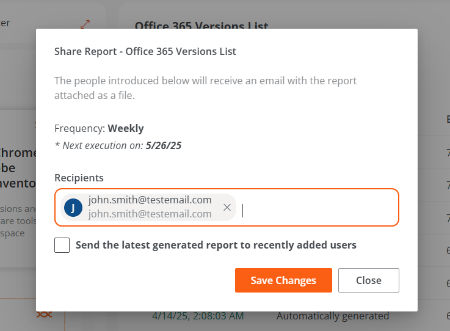
- Enable the Send the last generated report to newly added users option.
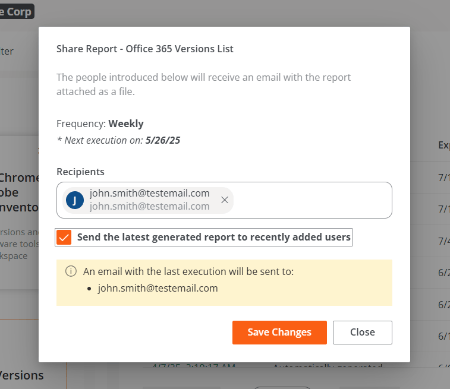
- Click Save changes.
If you add email addresses and click Save changes without selecting Send the last generated report to newly added users, the addresses are saved correctly. This lets you keep adding others later without losing the previous ones.
Delete a recipient
- Go to Reports and select a report type in the inventory.
- In the top menu of the table, click the Share button.
- Delete the recipient’s address.
- Click Save changes.
Share a one-off report
- Go to Reports and select a report type in the inventory.
- In the table, choose the report you want to send and, in the Actions field, click Share.
- Enter the email addresses.
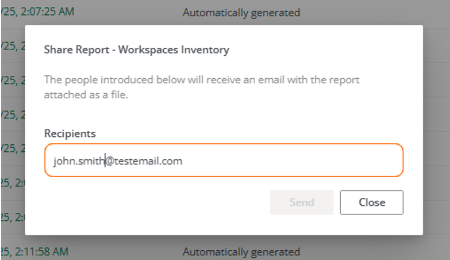
- Press the Enter key on the keyboard to add the addresses, after which the Send button will be enabled.
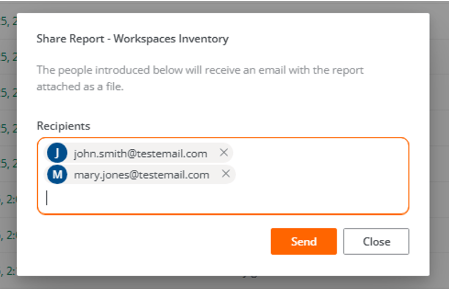
- Click Send.