

- Alert triggered
- Microservice executed
- Object created
- Object modified
- Object deleted
- Operation executed
- Operation executed on a workspace
Overview
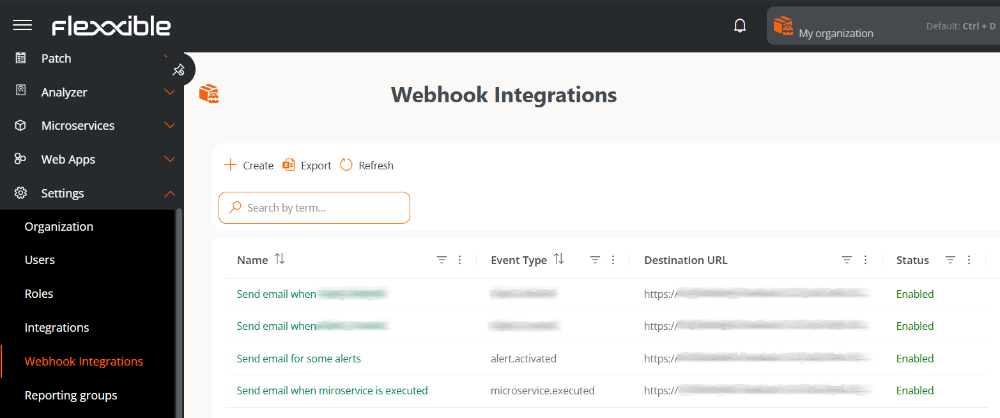
The main screen displays the list of webhooks configured in the organization, indicating whether they are enabled or disabled. The table includes:- Name. Name assigned to the webhook. Clicking accesses its detail view.
- Event type. Event that will trigger the webhook.
- Destination URL. Address of the external system that receives the event and acts according to the information provided in the message.
- State. Indicates whether the webhook is Enabled or Disabled.
Create a webhook integration
To create a new webhook, follow these steps:- Go to Settings → Webhook Integrations.
- Click New.
- Fill in and configure each section of the form:
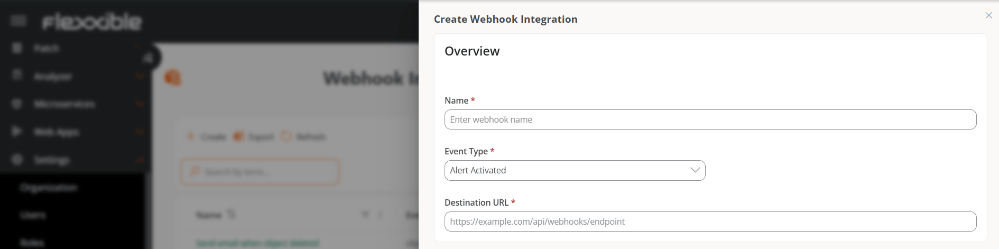
- Name. Name assigned to the webhook.
- Event type. Event that will trigger the webhook.
- Destination URL. Address of the external system that receives the event and acts according to the information provided in the message.
-
Alert triggered
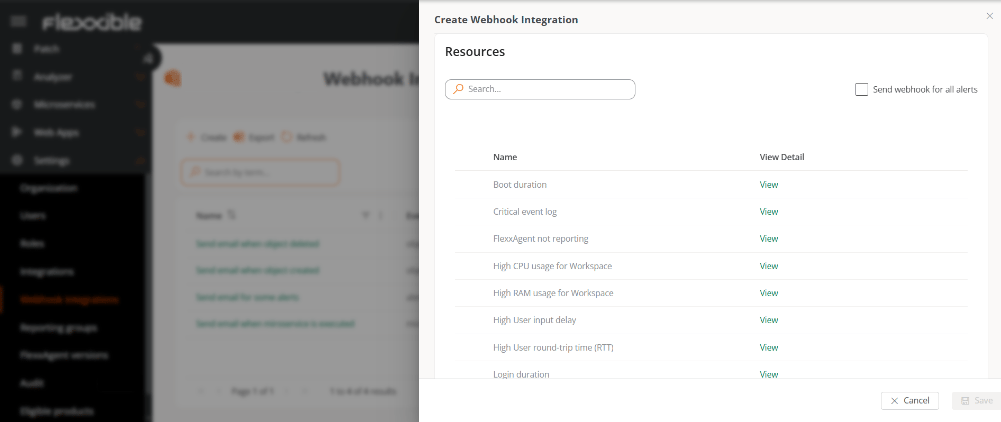
- Shows the list of active alerts in the organization to select which ones will send the webhook.
- Send webhook for all alerts - Activates the webhook for all alerts.
-
Microservice executed
- Shows the list of enabled microservices to select which ones will send the webhook.
- Send webhook for all microservices - Activates the webhook for all microservices.
- In both cases, the View button allows you to access the resource’s detail view.
-
Object created, Object modified, or Object deleted
- Show a list to select the object that will send the webhook after the corresponding action.
- Send webhook for all objects - Activates the webhook for all objects.
-
Operation executed
- Shows a list to select the operation that will send the webhook when executed.
- Send webhook for all operations - Activates the webhook for all operations.
-
Operation executed on a workspace
- Shows a list to select the operation that will send a webhook for each device on which it has been executed.
- Send webhooks for all operations executed on each workspace - Activates the webhook for all operations per device.
- Operations can be executed on one or more devices.
- The Operation executed event allows sending a webhook at the global level.
-
The Operation executed on a workspace event allows sending a webhook for each of the devices on which the operation was executed.
Example:
If the Restart operation is executed on three devices simultaneously, the following will be generated:
- One webhook notification of type Operation executed.
- Three webhook notifications of type Operation executed on a workspace.
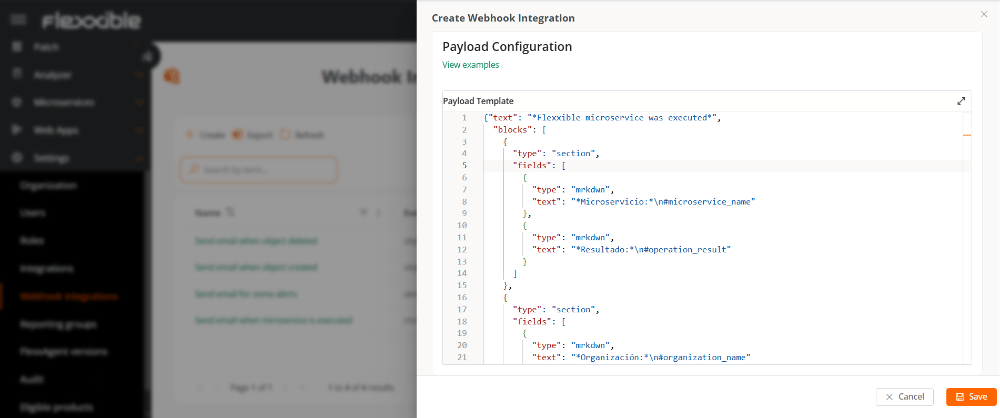
- Click Save.
Variables available for the message
All event types
Alert triggered
Template example
Microservice executed
Template example
Object created, modified, or deleted
Template example
Operation executed
Template example
Operation executed on a workspace
Template example
Slack
Below is an example of a template compatible with Slack Incoming Webhooks, which can be used as a basis for building the message sent from the platform:For more information on message format, available blocks, and best practices, see the official Slack guide.
Microsoft Teams
In Microsoft Teams, templates can be consulted directly from the configuration of each channel.For details on how to correctly configure an incoming webhook and what structure the JSON template should have, see the official Microsoft guide.
Detail view
When selecting a webhook from the table, you access its detail view:- Overview
- Metrics
Overview
Presents cards with basic information: State, Created on, and Updated on.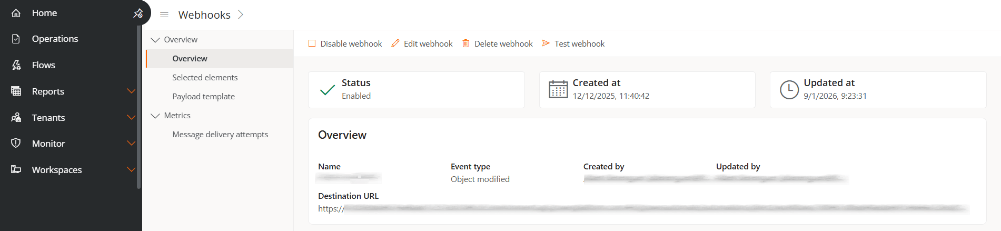
1. Overview
- Name. Name assigned to the webhook.
- Event type. Event that will trigger the webhook.
- Created by. User who created the event.
- Updated by. Last user who modified the webhook.
- Destination URL. Address of the external system that receives the event and acts according to the information provided in the message.
2. Selected resources
Shows the resources associated according to the event type.3. Message template
Displays the JSON structure configured for the webhook.Metrics
Message delivery attempts
This tab presents two levels of information. At the top, summary cards are shown with the overall status of the messages sent through the webhook:- Successful messages
- Pending messages
- Messages in progress
- Failed messages
- Total messages
-
Success rate
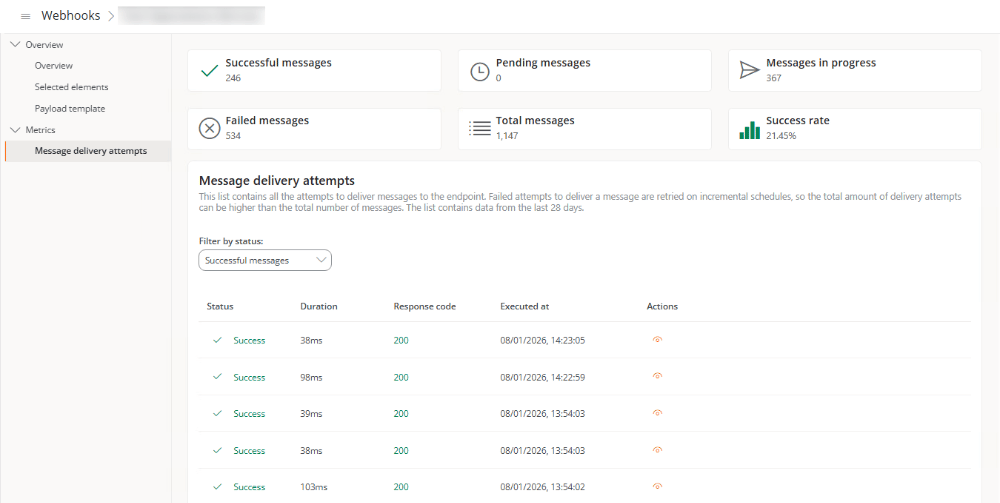
- State. Result of the execution.
- Duration. In milliseconds, time it took for the webhook to run.
- Response code. HTTP code returned when the webhook was executed.
- Executed on. Date and time the execution took place.
- Actions. Opens a window with the details of the execution.
- Immediately
- After 5 seconds
- After 5 minutes
- After 30 minutes
- After 2 hours
- After 5 hours
- After 10 hours
- After 10 hours (additional)
Each interval starts from the failure of the previous attempt.
If a message send fails three times and completes successfully on the fourth attempt, four attempts will be displayed in the table (three failed and one successful). However, the system will count it as a single message.
Actions on webhooks
The detail view also allows you to perform the following actions on the webhook:
Enable / Disable
Enables or disables the webhook according to its current state.Webhooks are disabled by default.
Edit
Allows you to modify:- Name
- Event type
- Destination URL
- Resources
- Message template