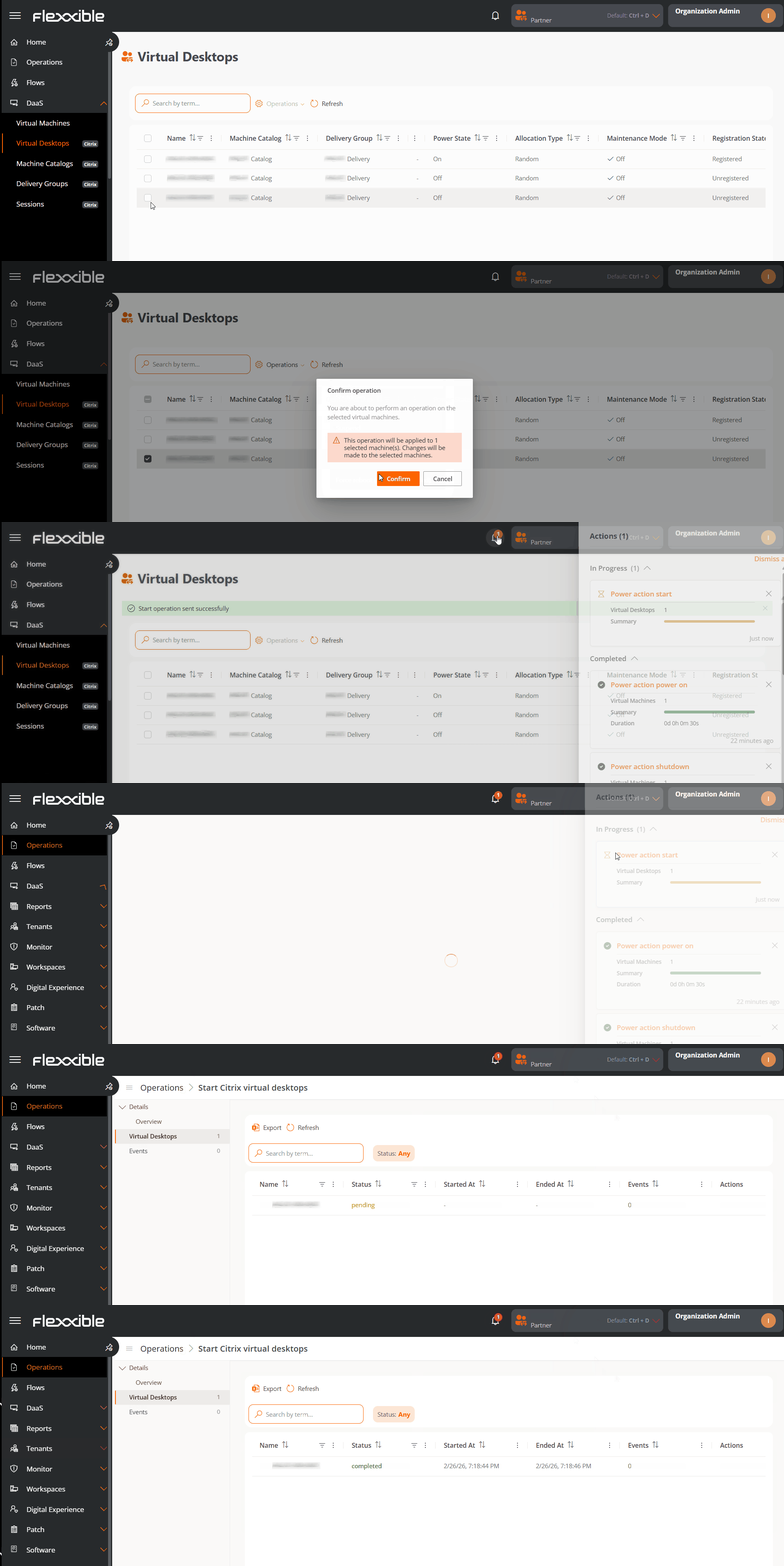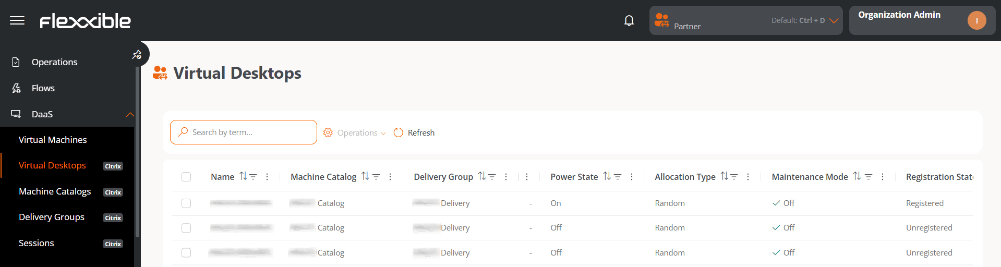
Table information
- Name. Name of the machine or template.
- Machine catalog. Name of the catalog it belongs to.
- Delivery group. Delivery group the machine is part of.
- User. User name.
- Power state. In use, Off, Available, or Disconnected.
- Maintenance mode. Off or On.
- Allocation type. Static or Random.
- Registration state. Registered or Unregistered.
Available operations
This view lets you run actions on one or more selected virtual desktops.Steps to run an operation
- Go to DaaS → Virtual desktops.
- In the table, select one or more virtual desktops to run the operation on.
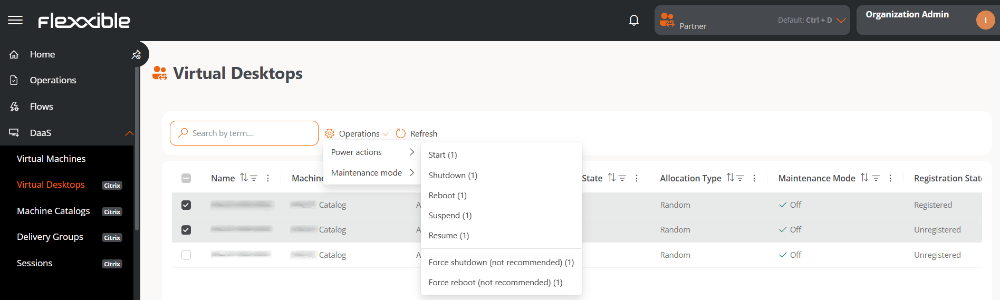
- Click the Operations button.
- Select the corresponding action. The number in parentheses next to each action indicates the number of virtual desktops it can be applied to.
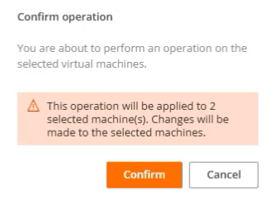
- Confirm the operation in the pop-up window.
Tracking operations
Once the action is confirmed, you can check its status by clicking the notifications icon (bell) located next to the organization name. Each action generates a separate entry per virtual desktop in the Operations section, where you can review the status and result of each execution.